
Templates & Resource Healthcare
Google Business Profile Checklist for Urgent Care, Primary Care and Dermatology Clinics
Most Google Business Profile advice for clinics is the same list: claim it, pick a category, add photos, post, get reviews. None of the guides we read show which of those things differ between the clinics in the map pack and the ones below it. We looked at 534 urgent care, primary care and dermatology profiles to find out. This checklist puts what differs first, adds the privacy rules for reviews, and ends with a download.
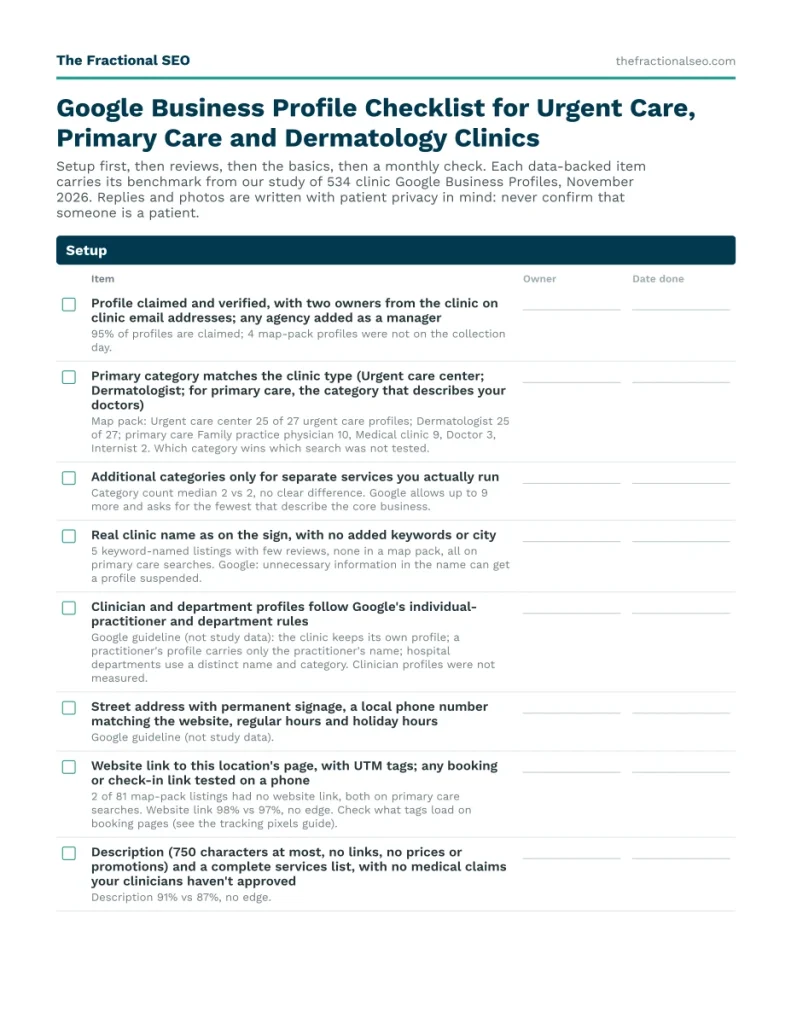
Get the template No email required
What's inside
Reviews
A weekly review routine, the one profile habit where map-pack clinics clearly differ.
Privacy-safe replies
Request and reply wording that never confirms someone is a patient.
Setup
Claim, category by clinic type, name, clinician profiles, hours, website and description.
Benchmarks
Each data-backed item carries its figure from our study of 534 clinic profiles.
How to use it
-
Download the checklist
Print the PDF or copy the Google Sheet.
-
Start the review routine
A link after every visit, and a written reply rule for the front desk.
-
Fix setup in one sitting
Category, name, hours, website and description take minutes once you're logged in.
We analyzed 27 local searches across 9 US metros and three clinic types (urgent care, primary care and dermatology), 301 provider websites (261 crawled) and 534 Google Business Profiles, November 2026. For this checklist we compared the profiles of providers that reached a map pack in any study search with those only seen at Maps positions 4-20, counting each profile once. The website side of the same study is in our study of 261 clinic websites.
We ran these searches once, on 17 November 2026, so treat rankings as a snapshot: they move from week to week.
The short version: reviews are the gap, both the total and the pace. Almost everything else showed no clear difference, so set it up once and spend your weekly time on reviews.
What map-pack clinic profiles have more of
Two figures lean with the map pack, and both were strong results statistically:
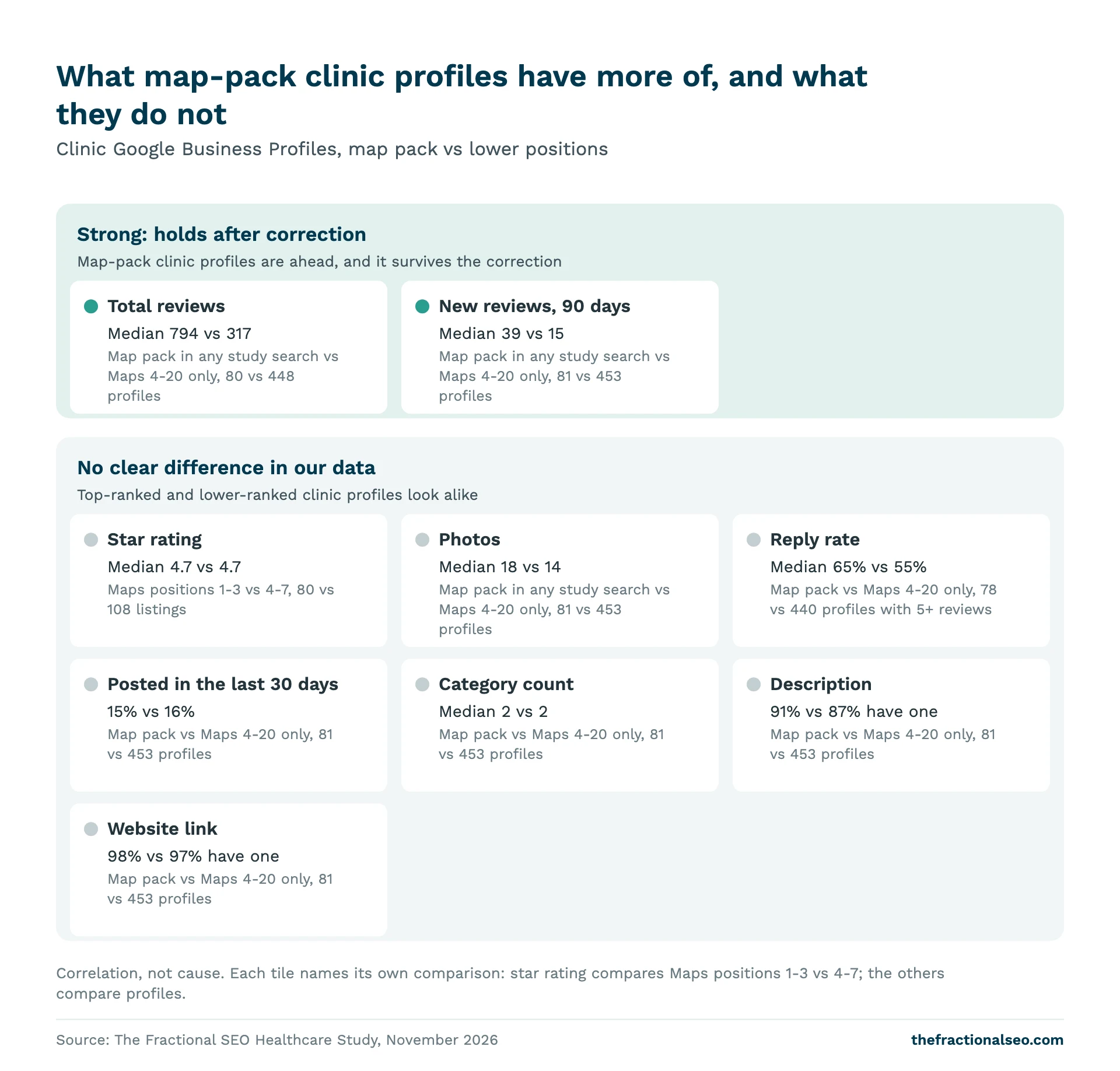
- Reviews: providers that reached a map pack have a median of 794 Google reviews vs 317 for those seen only at Maps positions 4-20. The gap holds for independent clinics alone (835 vs 323).
- Recent reviews: a median of 39 vs 15 new reviews in the 90 days before collection, and 12 vs 5 in 30 days. Independents alone: 39.5 vs 14 in 90 days.
These showed no clear difference between map-pack profiles and the rest:
- Photos: a median of 18 vs 14.
- Replies: a median reply rate of 65% of the newest 20 reviews vs 55%.
- Google posts: 15% of map-pack profiles and 16% of the rest posted in the 30 days before collection.
- Star rating: 4.7 in the map pack and 4.7 at positions 4-7.
- Basics: category count (a median of 2 vs 2), a description (91% vs 87%) and a website link (98% vs 97%).
The three clinic types are not one market, so here are the main figures by type:
| Map pack vs Maps 4-20 only (medians) | Urgent care | Primary care | Dermatology |
|---|---|---|---|
| Total reviews (strong overall) | 1,097 vs 594 | 324 vs 106 | 1,048 vs 376 |
| New reviews in 90 days (strong overall) | 38 vs 28 | 19 vs 4 | 40 vs 20 |
| Photos (no clear difference) | 28 vs 23 | 5 vs 6 | 19 vs 16 |
The review gap points the same way in all three types but is clear on its own only in dermatology; urgent care and primary care samples are too small to pass alone. This is a correlation: established clinics tend to have more reviews and other advantages too, such as age, locations and links. For the review side in detail, see what 534 clinic profiles show about reviews.
Download the checklist
The free checklist turns this page into 17 items: the review routine, privacy-safe replies, setup, photos, posts and a monthly check. Each data-backed item carries its figure from our study, on two printable pages or a Google Sheet you can copy. It covers the profile only. For your website, links and the rest of local SEO, use the local SEO checklist for medical clinics.
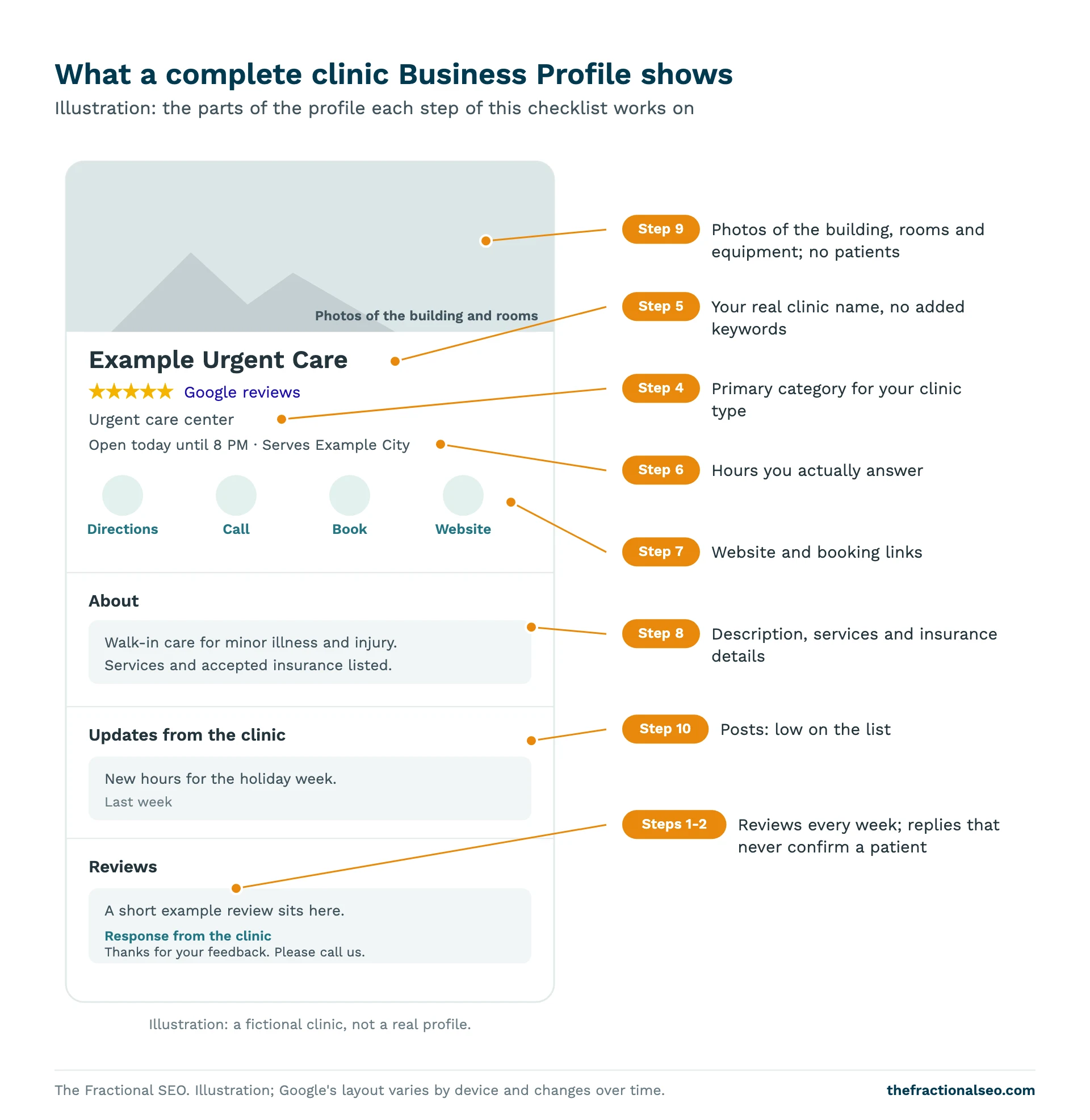
Step 1: Ask every patient for a review, every week
Reviews are the clearest gap, and the pace counts as well as the total. Map-pack providers got a median of 39 new reviews in the 90 days before collection vs 15 for the rest. We collected only each profile’s newest 40 reviews, and 154 profiles had 40 or more in 90 days, so the pack median sits near that cap and the real gap is likely larger.
Few providers reach the map pack on a handful of reviews: 4 of 81 map-pack listings have fewer than 10, three-quarters have 333 or more, the median is 777 and 53 (65%) have 500 or more. The bar differs by clinic type: median 1,097 for urgent care, 1,048 for dermatology and 291 for primary care. These figures describe the sample; they are not targets. Compare yourself with the map pack for your clinic type in your own city. And the rating isn’t the gap: the median is 4.7 in the map pack and 4.7 at positions 4-7.
Make asking part of every visit:
- Get your review link or QR code from the profile. Google’s help page on reviews says you can share either.
- Send the link to every patient after the visit, by text or email, or hand over a card with the QR code at checkout. Keep the message generic and never name the reason for the visit or a treatment.
- Ask everyone, not only the patients you expect to be happy. Google’s content policy says businesses may not discourage negative reviews or “selectively solicit positive reviews from customers.”
- Don’t pressure anyone to review while in the clinic or ask for specific wording, such as a staff member’s name. The same policy rules both out.
- Never offer a discount, a gift card or a free service for a review. The policy bans incentives.
If a texting or review tool sends the requests, it handles patient phone numbers and the fact that someone visited. Ask the vendor whether it signs a business associate agreement (BAA), and check the setup with your privacy or compliance counsel. Our list of patient messaging and review software records what each vendor states. Count new reviews each month: over 30 days the map-pack median was 12 vs 5.
Step 2: Reply without confirming anyone is a patient
Replying is the one review habit our data does not tie to the map pack. Replying to reviews shows no clear difference: a median reply rate of 65% of the newest 20 reviews in the map pack vs 55%. Clinics split into camps: 29% reply to none of their newest 20 and 32% reply to 90% or more.
Patients still read replies. Google’s help page says a reply is public, is checked against its content policies first, and notifies the reviewer. So the privacy rule matters more than the reply rate. A clinic’s reply must not confirm that the reviewer is a patient, and must not mention their visit, condition, treatment, bill or anything from their records. That holds even when the reviewer has described their own visit in detail: don’t repeat it, correct it or add to it.
Write the rule down for whoever replies, and keep two plain templates (our own wording):
- Good review: “Thank you for taking the time to share this. We pass feedback like this on to the whole team.”
- Bad review: “We take every concern seriously and would like to talk this through. Please call the office and ask for the practice manager.”
Reply once, calmly, and never argue in public. This is practice advice, not legal advice: have your privacy or compliance counsel approve the templates. For the wider question of what your website shares with ad platforms, see our guide to tracking pixels and HIPAA.
Step 3: Claim and verify your profile
95% of the clinic profiles in our study are claimed, but 4 map-pack profiles were not on the collection day. Search for your clinic on Google Maps and claim the existing profile rather than making a second one. Verify it with a method Google offers you. Then add a second owner from the clinic, using a clinic email address rather than a personal one, so the profile isn’t tied to one person who might leave. If an agency runs it, make it a manager, not the owner.
Step 4: Pick the primary category for your clinic type
This is the one setup step that takes a real decision. Each clinic type has its own primary category in the map pack:
| Map-pack profiles (27 per type) | Primary category |
|---|---|
| Urgent care | Urgent care center 25, Emergency room 1, Walk-in clinic 1 |
| Primary care | Family practice physician 10, Medical clinic 9, Doctor 3, Internist 2, a few others |
| Dermatology | Dermatologist 25, Skin care clinic 2 |
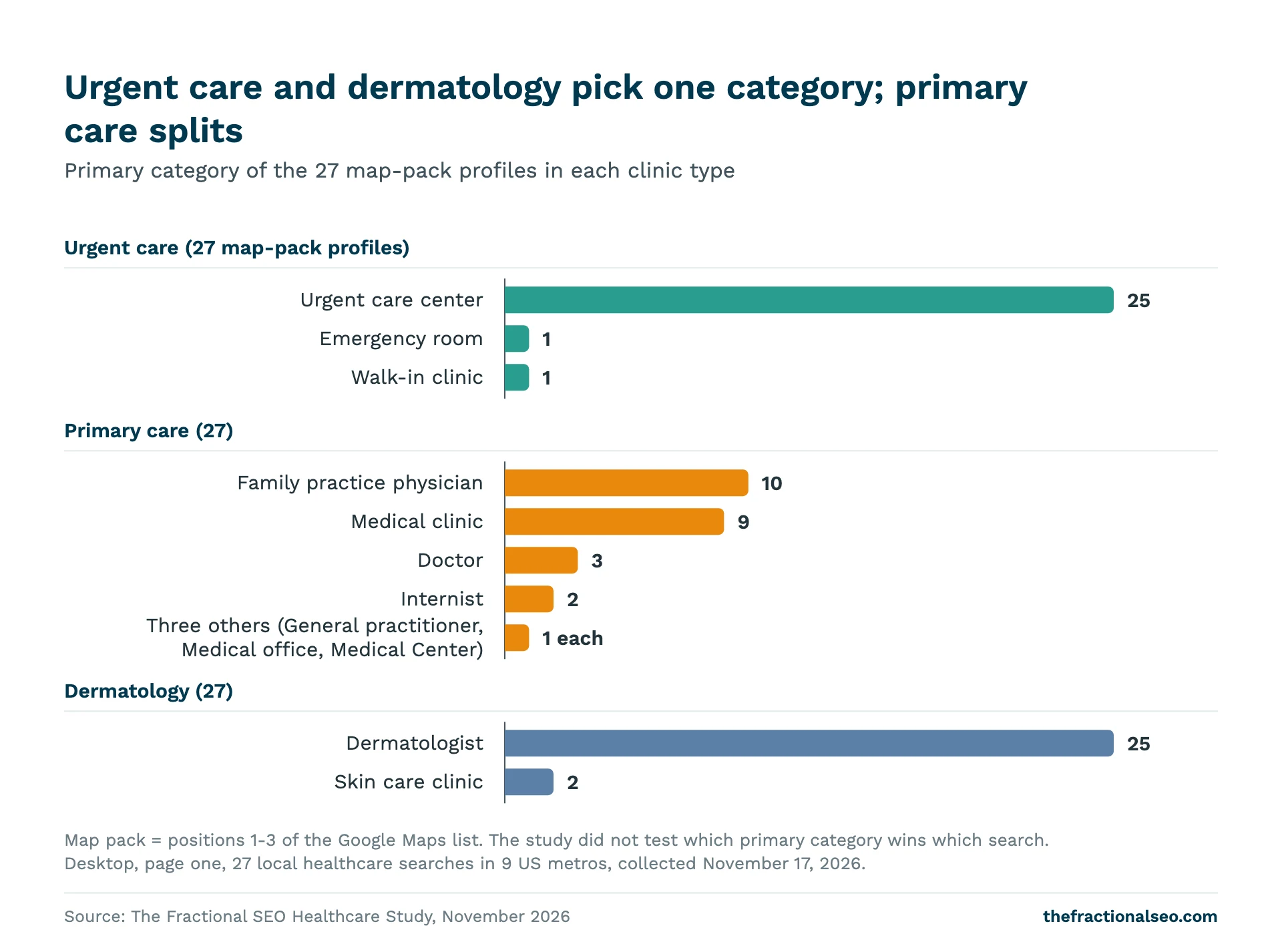
For urgent care and dermatology the choice is close to settled: “Urgent care center” and “Dermatologist”. Primary care splits. We didn’t test which category wins which search, so pick the one that describes your doctors: “Family practice physician” for family medicine, “Internist” for internal medicine, and “Medical clinic” for a mixed or walk-in primary care clinic.
Google’s help page on editing your profile says all locations of a business must share a primary category, that you can select up to 9 more, and that you shouldn’t use categories solely as keywords. Its guidelines say to choose the fewest categories it takes to describe your core business. Category count showed no clear difference (a median of 2 vs 2), so add one only for a separate service you actually run, such as a cosmetic dermatology service or on-site lab work.
Step 5: Use your real name, and know the clinician and department rules
Use the name on your sign. Google’s guidelines for representing your business say adding unnecessary information to the name isn’t permitted and could get the profile suspended, so no “Urgent Care Walk-In Near Me” on the end. Keyword-named Maps listings with few reviews (a listing named only “<city> primary care”, for example) are rare: 5 listings, 5 Maps rows, none in a map pack, all on primary care searches.
The same guidelines treat doctors as individual practitioners. They say a doctor who works in a public-facing role and can be contacted at the verified location during stated hours should create a profile of their own, and shouldn’t have several profiles for different specializations. Where several practitioners work at one location, the clinic keeps its own profile and each practitioner’s profile carries only the practitioner’s name. A department inside a hospital may have its own profile with a distinct name and category. Our study measured clinic profiles, not clinician profiles, so we can’t say whether they help.
Step 6: Address, phone and hours
Patients come to you, so show the real street address and keep permanent signage at it, as Google’s guidelines ask. Use a local number rather than a central call-center line where you can, and match it to your website. Set the hours patients can walk in or call. Google lets you set special hours for holidays and other temporary periods.
Step 7: Link your website and booking page
Almost every provider in the map pack shows a website: 2 of 81 map-pack listings had no website link, both on primary care searches. On the profile side a website link is near-universal (98% vs 97%), with no edge. Point it at the page for this location, add UTM tags so your analytics shows visits from the profile, and if you add a booking or check-in link, open it on a phone to check it works. Check what tags load on those pages too: see what 261 clinic homepages load.
Step 8: Description and services
Google’s edit page says not to exceed 750 characters and not to include URLs; its guidelines rule out descriptions that focus on promotions or prices. A description is near-universal (91% vs 87%, no edge), so write it for patients and move on: what the clinic offers, walk-ins or appointments, ages seen and the neighborhood. Then fill in the services list. Leave medical claims out; your clinicians should write or approve anything about care.
Step 9: Photos without patients in them
Photos show no clear difference: map-pack profiles have a median of 18 vs 14. Primary care profiles have very few photos either way. The counts include photos patients add. Photos still help a first-time patient find the door, so add the outside of the building, the entrance and parking, signage, the waiting room and an empty exam room. Keep patients, faces, screens, schedules and paperwork out of every frame. Google’s photo guidelines ask for JPG or PNG files between 10 KB and 5 MB, recommend 720 px tall and 720 px wide, and say the image should represent reality. Photos show only after the profile is verified.
Step 10: Posts, low on the list
Google posts show no edge: 15% of map-pack profiles and 16% of the rest posted in the 30 days before collection. 36% of all profiles have never posted. Post when patients need to know something: holiday hours, a flu-shot clinic, a new location or service. Google’s help page on posts lists updates, offers and events. Don’t post health tips as a ranking tactic.
Step 11: Check performance monthly
Once a month, note calls, website clicks and direction requests from the profile’s performance view, and the number of new reviews.
What the profile can’t do on its own
Google’s local ranking page says local results are mainly based on relevance, distance and popularity, and that there’s no way to request or pay for a better local ranking.
Two more things from the study. The map pack and the organic results are mostly different providers: 38% of map-pack listings with a website also rank on page one organically for the same search. And map-pack providers have a median of 297 referring domains vs 166, a lean that fails the correction. The profile is one part of the job. See the full local SEO guide for clinics.
Work through the checklist, then talk to us about the rest of your clinic’s local SEO: SEO for urgent care, primary care and dermatology clinics.
Questions, answered
What Google Business Profile category should a clinic use?
The one that matches the clinic type. In the map pack, “Urgent care center” is the primary category on 25 of 27 urgent care profiles and “Dermatologist” on 25 of 27 dermatology profiles. Primary care splits, led by “Family practice physician” (10) and “Medical clinic” (9).
How many Google reviews does a clinic need?
There’s no set number. Map-pack medians are 1,097 for urgent care, 1,048 for dermatology and 291 for primary care, and only 4 of 81 map-pack listings have fewer than 10. Compare yourself with the map pack in your own city.
Can a clinic reply to Google reviews?
Yes, as long as the reply never confirms the reviewer is a patient or mentions their care. Have your privacy or compliance counsel approve your templates. Reply rate itself showed no clear difference in our data.
Do photos or Google posts help a clinic rank?
Not in a way we could measure. Photos (a median of 18 vs 14) and posting (15% vs 16% in 30 days) showed no clear difference. Add them for patients.
Does star rating matter?
Not for the map pack in our data: the median is 4.7 in the map pack and 4.7 at positions 4-7.